- Facebook Lead Ads
- Website form
- Typeform
- Your CRM
 SetterMaxer AI
Integration · Zapier
Zapier WhatsApp Integration: leads in, appointments out.
With the SetterMaxer app for Zapier you bring leads from Facebook Lead Ads, forms and your CRM into SetterMaxer. The AI messages them on WhatsApp, qualifies them and books appointments. SetterMaxer then sends booked appointments, handoffs and lead details back to your CRM, your spreadsheets or Slack.
Two directions, one connection.
The Zapier integration works both ways: the Create Lead action adds leads from other tools to SetterMaxer, and six triggers send events from SetterMaxer to any app Zapier connects. Available on the Standard plan and up.
Leads in New lead in  Zapier
SetterMaxerCreate Lead
Zapier Lead created
15 minutes later
Clearview CoachingHi Julia, thanks for your enquiry through our Facebook ad! Could I ask you two quick questions?
Events out SetterMaxerAppointment Booked Zapier On to
Julia Walker · Tue, 6:00 pm
Zapier - HubSpot
- Google Sheets
- ActiveCampaign
- Slack
Contact and appointment in your CRM
What the SetterMaxer app can do in Zapier.
In Zapier the building blocks are named as in the headings below. Every trigger carries the whole lead: name, phone, email, tags, qualification, lead score and your own columns.
Create Lead
Adds a contact to one agent's lead table, for example from Facebook Lead Ads, a form or your CRM.
- Name, email, phone and your agent's own columns
- Same phone number or email: the lead is updated, not duplicated
- Empty fields never overwrite stored values
Message Facebook Lead Ads leads on WhatsApp: how to set it up.
The example shows the most common Zap: leads from Facebook and Instagram forms land in SetterMaxer and get a WhatsApp message. Other forms or your CRM work the same way. You need the Standard plan, a Zapier account and a WhatsApp template approved by Meta.
-
Create an API key
In SetterMaxer, open your organization's settings and then API keys. Create a key and copy it right away: it is shown only once. Organization admins and owners can do this.
- Optional expiry date
- Regenerate or revoke at any time
- Revoking also stops every Zap connected with that key
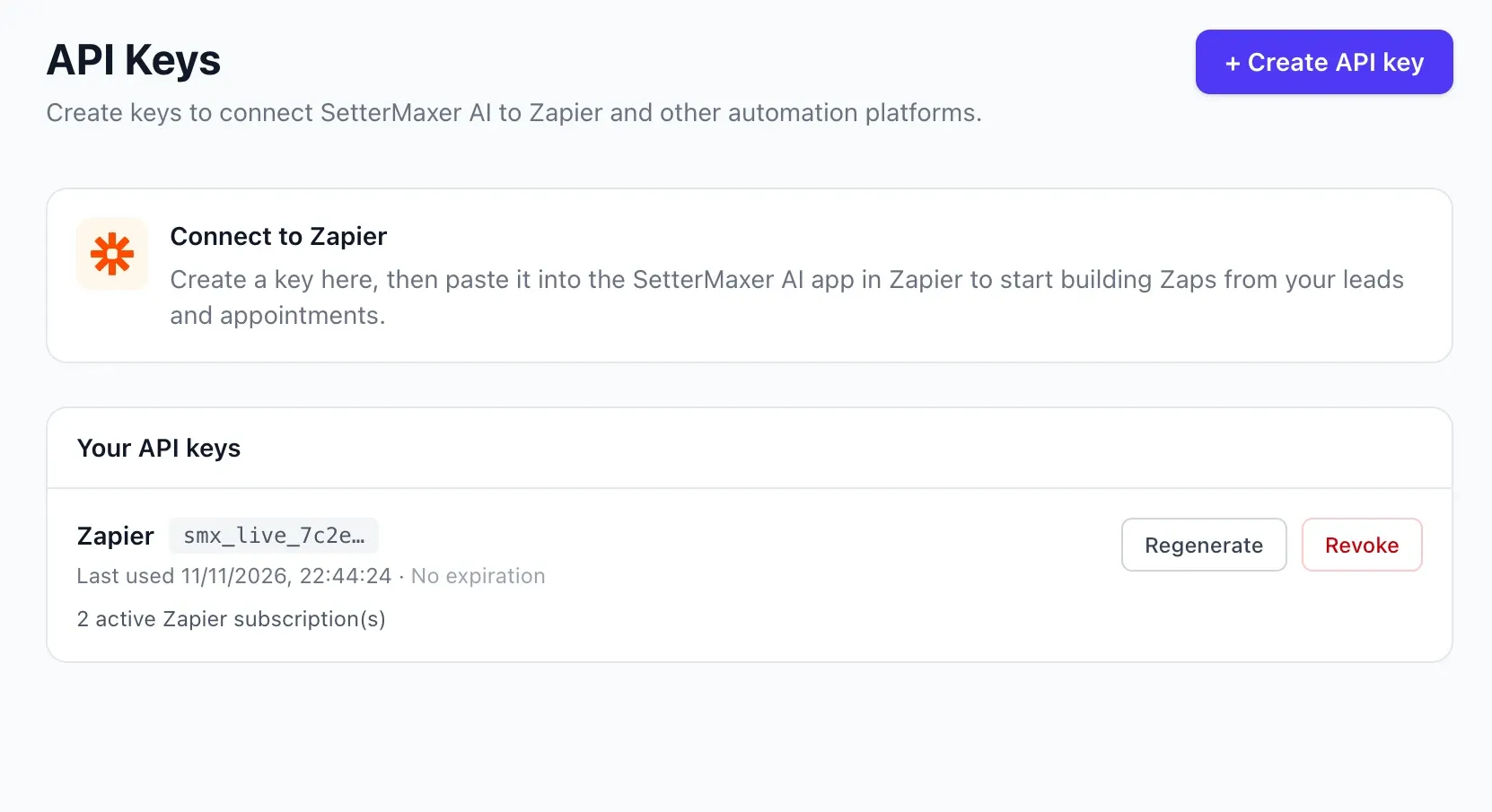
API keys: create once, paste into Zapier. -
Build the Zap: Facebook Lead Ads to SetterMaxer
In Zapier, pick Facebook Lead Ads with New Lead as the trigger and SetterMaxer with Create Lead as the action. Connect your account with the API key, choose the agent and map name, email and phone number from the form.
- The Zap also shows your agent's own columns
- Pass the phone number with its country code, such as +44
- Facebook Lead Ads is a Premium app on Zapier and needs a paid Zapier plan
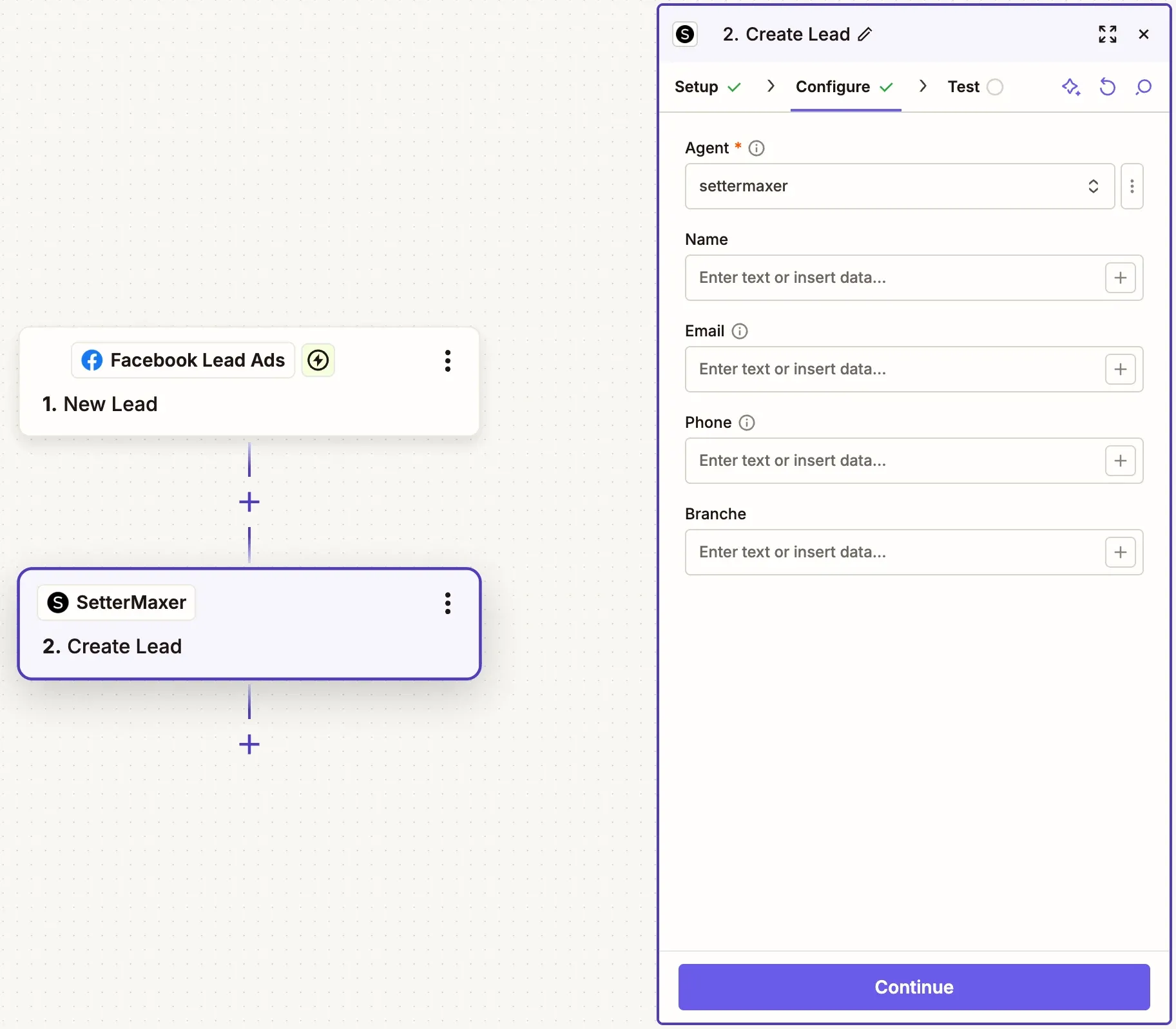
Zapier: Facebook Lead Ads as the trigger, SetterMaxer Create Lead as the action. -
Turn on Automatic Contact
Under Outbound, choose the WhatsApp number, the approved template and which lead column fills in the first name. From then on SetterMaxer messages every new lead from Zapier, 15 minutes after it arrives by default. Once the lead replies, the AI agent takes over the conversation.
- Delay from 2 minutes to 7 days
- Quiet hours from 9 pm to 8 am and on Sundays by default
- Each phone number is contacted only once per agent
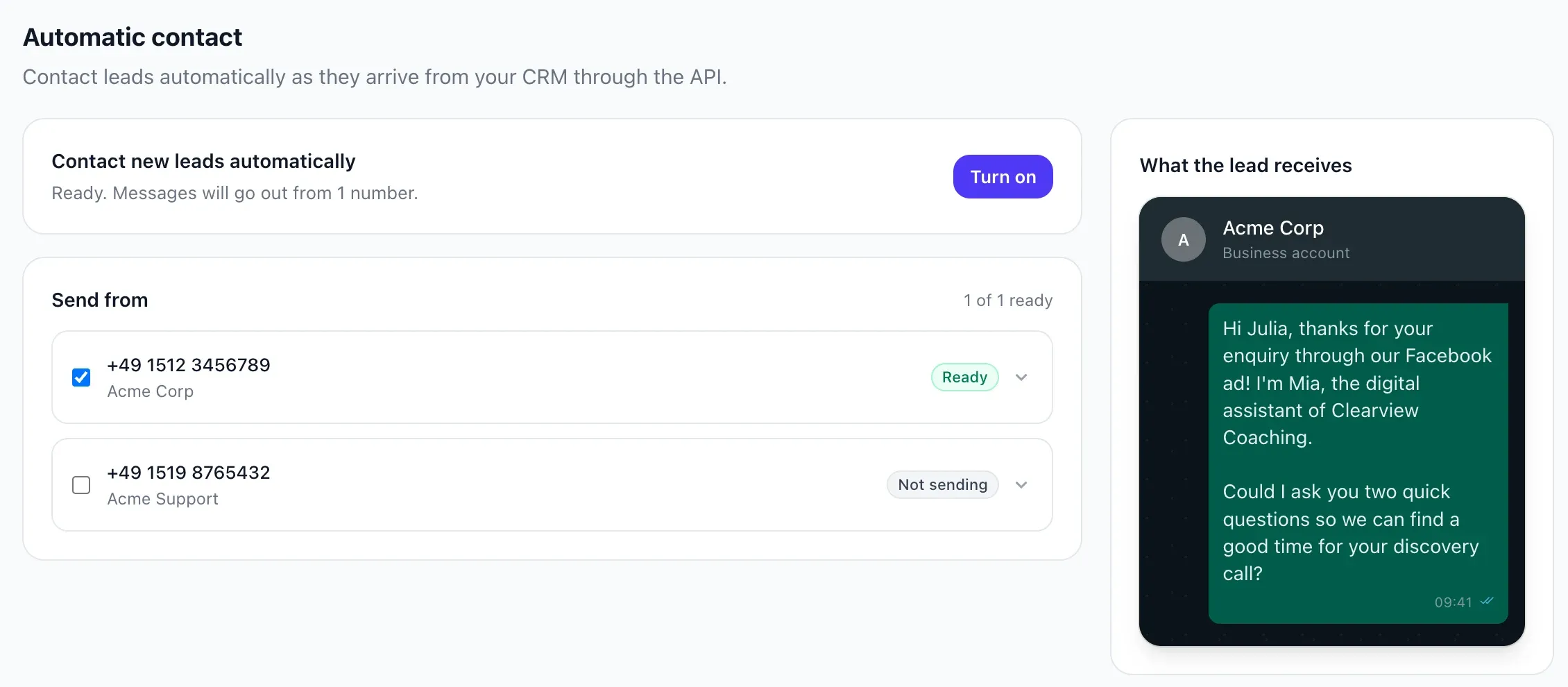
Automatic Contact: pick the number and preview the first message. -
Send booked appointments back to your CRM
Build a second Zap with the Appointment Booked trigger and your CRM's action, such as HubSpot Create or Update Contact. Every booked appointment then reaches your CRM with its date and link, without retyping anything.
- Match records on the lead_id
- Appointment Rescheduled for moved appointments
- Up to 50 active Zaps per organization
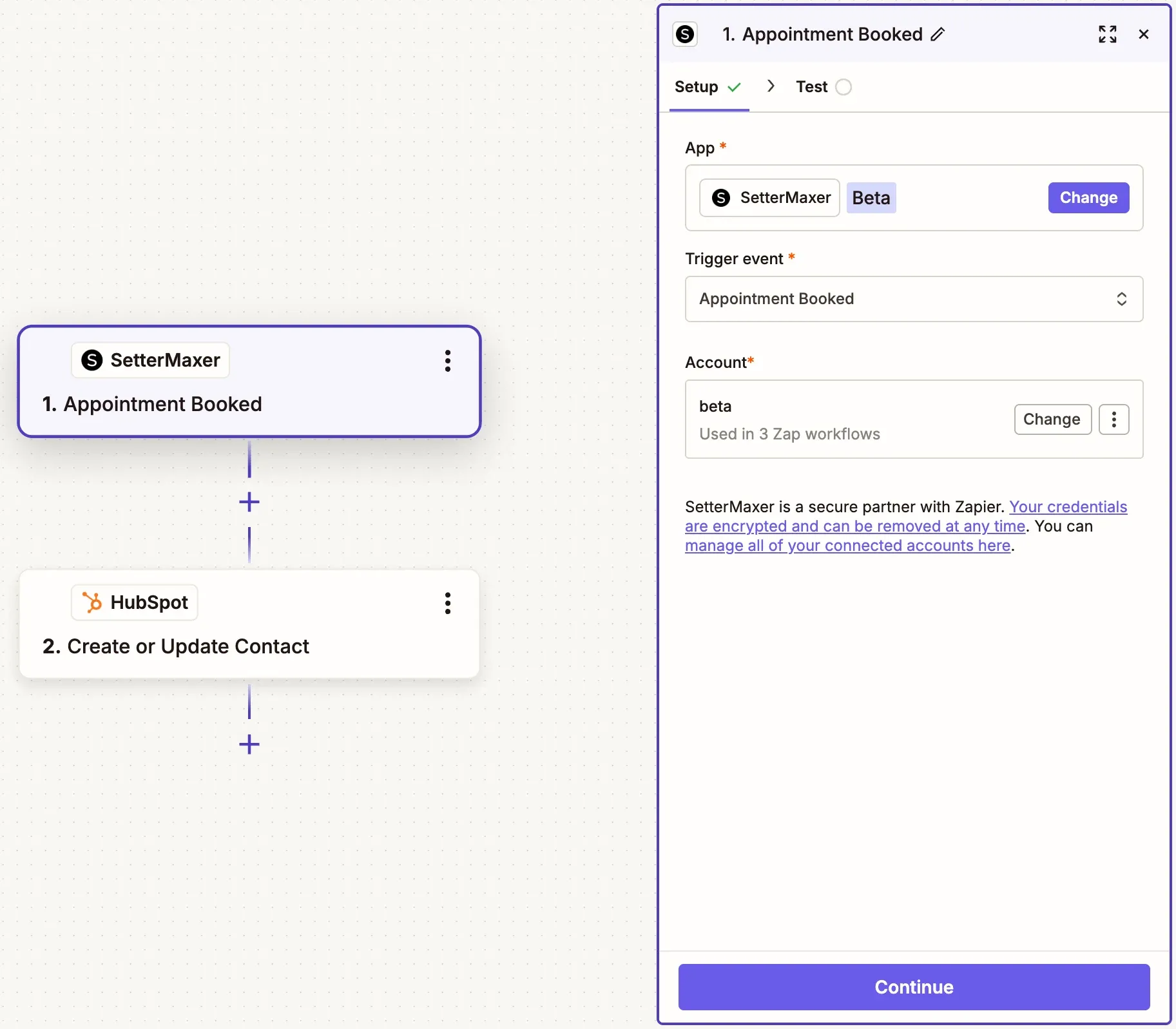
Zapier: send booked appointments from SetterMaxer to HubSpot.
● System answers
Frequently asked questions about the Zapier integration
Everything about connecting, triggers and the first WhatsApp message.
How do I connect SetterMaxer to Zapier?+
Create a key in SetterMaxer under Settings and API keys. In Zapier, pick the SetterMaxer app and paste the key when Zapier asks for it. All triggers and the Create Lead action are then available to you.
SetterMaxer on Zapier →Which plan includes the Zapier integration?+
The Standard plan and up. Zapier itself has its own plans. Some apps, such as Facebook Lead Ads, are Premium apps on Zapier and need a paid Zapier plan.
See pricing →Can I message Facebook Lead Ads leads on WhatsApp automatically?+
Yes. A Zap with Facebook Lead Ads as the trigger and SetterMaxer Create Lead as the action creates every new lead. Automatic Contact then sends them an approved WhatsApp template. Once the lead replies, the AI agent qualifies them and books the appointment.
How quickly does a lead from Zapier get the first message?+
After the delay you set: between 2 minutes and 7 days, 15 minutes by default. If that falls within your quiet hours, the message goes out afterwards. By default those are 9 pm to 8 am and Sundays.
Why do I need a WhatsApp template?+
WhatsApp only allows the first message to someone who hasn't written to you yet as a template approved by Meta. You create the template in SetterMaxer and submit it for review there. Once the lead replies, the AI agent writes freely.
Which triggers and actions are there?+
Six triggers: New Lead, Lead Info Updated by Agent, Appointment Booked, Appointment Rescheduled, Conversation Handed Off and Follow-Up Sent. Plus the Create Lead action, which creates or updates a lead.
Do leads from Zapier count toward my lead limit?+
Creating them with Create Lead doesn't count. A lead only counts once SetterMaxer messages them or they write first.
What happens if I revoke the API key?+
Every Zap connected with that key stops receiving events immediately. The Zaps themselves stay in your Zapier account and can be reconnected with a new key.
Does it work without Zapier?+
Yes. Webhooks send events to any HTTPS endpoint, such as n8n or your own system. Leads that arrive by email can be forwarded to your agent's email inbox.
Guide: email leads on WhatsApp →Is it GDPR compliant?+
SetterMaxer is hosted in Frankfurt am Main, and you get a data processing agreement (DPA). Zapier is a separate service based in the US and is on our list of subprocessors. You decide which data your Zaps pass on.
View subprocessors →Who sets it up?+
You can set everything up yourself. From the Standard plan we help with onboarding and connect Zapier, the WhatsApp template and the AI agent together with you.
Book a demo → Inbound and outbound coverage is ready
Every lead from your tools, on WhatsApp within minutes.
See in a free demo how SetterMaxer messages leads from Facebook Lead Ads and your CRM on WhatsApp, qualifies them and sends appointments back to your CRM.