
WhatsApp Business API: How to protect your number from being banned
Lower the risk of a ban for your WhatsApp Business number: with consent, the right templates and clear steps when Meta sends you a warning.
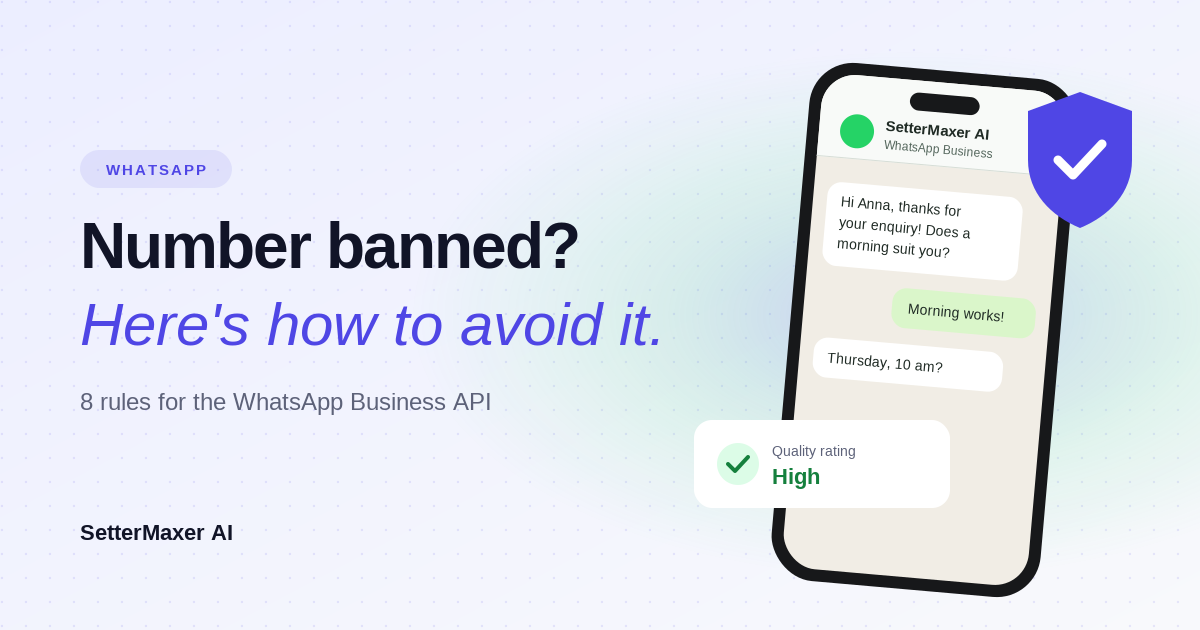
Before you message a lead on WhatsApp, answer two questions: Has this person agreed to hear from your business for this purpose? And may you write freely, or do you need an approved template? Template approval only answers the second question. People who don’t expect your message can report it even if Meta approved the text.
The recommendations below help you lower the risk of a restriction. They apply to the WhatsApp Business Platform (Cloud API), not to the free WhatsApp Business app.
Key takeaways
- Meta measures the quality of your messages by blocks, reports, mutes and archives over the past seven days.
- Only message people who have opted in and expect to hear from you.
- Good templates refer to the enquiry and end with a question or a button instead of a plain “Hi”.
- Start small: new business portfolios can initially reach 250 people per 24 hours outside open chats.
- Check the quality rating of your number and templates regularly and pause campaigns as soon as it turns yellow.
Why Meta restricts WhatsApp Business numbers
Meta protects WhatsApp from spam by measuring every business message against how recipients react to it. Message quality is based on feedback from the past seven days, with recent signals weighted more heavily (Meta for Developers: Service messages). The main signals are:
- Blocks and the reasons people give when they block you
- Reports of your chat
- Mutes and archives
For templates, the read rate counts as well. Every template gets its own rating: green means high, yellow medium and red low quality (Meta for Developers: Template quality rating). If a template keeps getting negative feedback, Meta can pause or disable it.
If an account repeatedly violates the policies, for example by sending spam or miscategorized templates, restrictions follow and get longer with each violation (Meta for Developers: Policy enforcement):
| Level | What happens |
|---|---|
| Warning | Notice of the policy you violated |
| 1 or 3 days | No marketing, utility or authentication templates, no new numbers |
| 5, 7 or 30 days | No messages at all, no new numbers |
| Account lock | Indefinite, only lifted through an appeal |
| Offboarding | Permanently removed from the WhatsApp Business Platform |
Independently of this, Meta can restrict or remove a business that receives excessive negative feedback. A new number doesn’t solve the problem: during a restriction you can’t add more numbers, and messaging limits apply to the entire business portfolio.
8 measures that help you prevent a ban
1. Only message contacts who have opted in
Consent is the most important rule. Under the WhatsApp Business Messaging Policy, you may only message people who have given you their number and agreed to receive messages from your business (Meta for Developers: Get opt-in for WhatsApp). Since November 2024, this opt-in no longer has to mention WhatsApp specifically. But Meta requires it to make two things clear:
- that the person wants to receive messages from you
- which business the messages will come from
Local law applies on top. In the EU, direct marketing by electronic message generally needs the recipient’s prior consent under Art. 13 of the ePrivacy Directive, and national rules such as Germany’s § 7 UWG add to it. So word the checkbox on your form specifically, for example: “I’d like Example Ltd to contact me on WhatsApp about my enquiry.” Bought lists and numbers without consent are off limits. This article is an overview, not legal advice.
2. Be recognizable as the sender right away
A message from an unknown number quickly looks like spam. Make sure recipients recognize you at a glance:
- Profile: Use the same name in your WhatsApp Business profile as on your website, plus your logo, a description and a link.
- Reference to the enquiry: Say in your first message where the contact came from, such as “your enquiry on our website”.
A lead recognizes you best when your message arrives shortly after their enquiry. Minutes after submitting a form, your name is still fresh; days later, it often isn’t. Our guide email leads on WhatsApp shows how to answer enquiries from your inbox on WhatsApp right away.
3. Write templates that invite a reply
Outside an open chat, you may only send templates that Meta has approved. How well a template is received determines its rating: Meta looks at negative feedback and low read rates and explicitly advises against open-ended welcome or introductory messages (Meta for Developers: Service messages).
Say a homeowner asks on your website for a property valuation appointment and wants the reply on WhatsApp. Compare these two openings:
- Without context: “Hi Anna, this is Example Ltd. Let us know if you have any questions!”
- With a reason and a next step: “Hi Anna, this is Example Ltd. You asked on our website about a property valuation. Would a morning or an afternoon suit you better for the appointment?”
In the second example, Anna knows who is writing, why she’s getting the message and what decision comes next. Reply buttons such as “Morning” and “Afternoon” fit this question. If you’re only confirming an appointment that’s already booked, the confirmation is enough. Don’t ask for a reply just to open the service window.
4. Choose the right template category
What counts is the content, not the template’s name. This is how Meta distinguishes template categories:
- Utility: For example, you confirm a booked appointment or announce a change, without promoting anything.
- Marketing: You promote an offer. An appointment confirmation with a discount on the next booking contains advertising, too.
- Authentication: You send a one-time code to verify someone’s identity.
Submitting promotions as utility doesn’t pay off. Since April 2025, Meta approves a template submitted as utility directly as marketing if its content is promotional. Repeatedly picking the wrong category risks a warning, rate-limited utility messages for at least seven days and eventually the switch of all your utility templates to marketing.
If a lead explicitly asked to be contacted on WhatsApp, a factual first message can count as utility: Meta lists continuing a conversation that started in another channel as an example. As soon as the message promotes something, it’s marketing.
5. Ramp up slowly instead of sending everything at once
Your messaging limit is a ceiling, not a sending target. It counts unique recipients outside an open service window in a rolling 24-hour period. All numbers in your business portfolio share this limit. You’ll find your current value in WhatsApp Manager under Messaging limits.
Pace matters more than the limit. New templates can be paced: Meta then delivers only part of the messages at first and waits for feedback before sending the rest (Meta for Developers: Template pacing). If the feedback is poor, Meta pauses the template and drops the held messages.
So test new templates on a small group of warm contacts and only increase the volume once the rating is green. Spread larger sends over several days and times instead of sending hundreds of messages in one minute. Our guide to lead reactivation on WhatsApp shows what this looks like for old leads.
6. Use the 24-hour window correctly
When a contact messages you, a 24-hour customer service window opens. Within it, you may send free-form messages, images or voice messages, and every new message from the contact restarts the window. After that, only approved templates are allowed (Meta for Developers: Service messages). Messages in an open window don’t count toward the messaging limit.
That leads to two rules:
- Reply quickly while the window is open. A reply within minutes feels like a conversation, not like advertising.
- Once it closes, only follow up with a suitable template. And only if the contact still has a reason to reply.
When testing: Agree on the test with the person receiving it. To test a free-form reply, have them send you a WhatsApp message first. To test the first contact without an open window, use a suitable approved template. A failed send on its own is not an account ban.
7. Follow up in moderation and honor opt-outs
Meta explicitly advises against sending too many messages per day. So plan a few follow-ups with some space between them, for example after one day and after three days, instead of checking in daily.
A clear way out matters just as much. Meta recommends explaining clearly how contacts can opt out, and honoring those requests (Meta for Developers: Get opt-in for WhatsApp):
- Offer an easy opt-out in marketing messages, such as “Reply STOP if you no longer want to hear from us.”
- Honor opt-outs immediately and permanently, even when they don’t come as a keyword but as “Please stop messaging me”.
WhatsApp users can also turn off marketing messages from individual businesses in their settings. WhatsApp then no longer delivers them, and the API returns error code 131050 (Meta for Developers: Marketing templates). WhatsApp may also limit how many marketing messages a person receives, starting with users who rarely read them.
8. Monitor quality and react early
You’ll find the quality rating and messaging limit of your number in WhatsApp Manager under your phone numbers, and the rating of each template in the template overview. With high volume, the rating can change within minutes (Meta for Developers: Service messages). So decide in advance how you’ll react:
- Yellow: Pause campaigns and review the audience and text of the affected template.
- Red: Only reply to incoming messages until the rating has recovered.
- Notifications: Keep the admins of your business portfolio up to date, because Meta emails warnings to them. If you integrate the API yourself, also subscribe to the
account_updateandmessage_template_quality_updatewebhooks.
What to do if your number is already restricted
First, check in Business Support Home in Meta Business Suite which policy is affected. There you’ll see the active restriction, what happens if you violate it again and whether you can appeal (Meta for Developers: Policy enforcement). Then take three steps:
- Fix the cause: Stop the campaign, pause the affected template, check your contact list for missing consent.
- Appeal if you followed the rules: In Business Support Home, select the violation and request a review. According to Meta, a decision usually takes 24 to 48 hours. If the violation is reversed, the account returns to its previous status.
- Wait if no appeal is possible: Not every spam violation can be appealed. Then all you can do is wait for the restriction to end and fix the cause in the meantime.
Checklist before every campaign
- All contacts have opted in, and the opt-in names your business.
- The template refers to the enquiry and ends with a question or a button.
- The category matches the content: anything promotional is marketing.
- The template is approved. New templates start without a quality rating, so test them on a small group that expects the message first.
- Sending is spread over several days and times.
- Opt-outs are detected and honored permanently.
- Someone checks the quality rating every day.
What SetterMaxer handles when sending
SetterMaxer uses the official WhatsApp Business API and applies many of these rules automatically:
- Replies in the open window: When a lead writes to you, the AI WhatsApp chatbot replies within seconds while the 24-hour window is open.
- Templates after the window closes: After that, SetterMaxer only offers approved templates, including for follow-ups.
- Spread-out sending: Automatic first contact sends with random gaps and respects quiet hours, by default from 9 pm to 8 am and on Sundays. Campaigns are spread across fixed time windows, with at most 30 messages per number per day.
- Stop words: If a lead replies with “STOP” or “unsubscribe”, SetterMaxer stops the follow-ups. The AI also recognizes requests phrased in their own words.
- Handover to your team: As soon as you write yourself, the AI pauses in that conversation.
A stopped follow-up is not a global block for later campaigns. Record opt-outs in one place and exclude those contacts before your next send. SetterMaxer doesn’t check consent.
Frequently asked questions
How long does a WhatsApp Business ban last?
It depends on the level. Meta usually starts with a warning. After that come restrictions of 1 or 3 days for templates and of 5, 7 or 30 days for all messages. An account lock is indefinite and can only be lifted through an appeal. For severe violations such as scams, WhatsApp removes businesses immediately.
Does a new number help after a ban?
No. The restriction applies to your account, and while it lasts you can’t add more numbers. All numbers in a business portfolio also share the messaging limits. Fix the cause instead.
May I message leads from my contact form on WhatsApp?
Yes, if the form asks for consent to messages from your business. Without that consent, you shouldn’t message them on WhatsApp, not even with an approved template: when Meta approves a template, it only checks the template’s text, not your contact list.
Sources
All pages retrieved on November 18, 2026.
- Meta for Developers: Messaging limits
- Meta for Developers: Service messages and message quality
- Meta for Developers: Template quality rating
- Meta for Developers: Template pacing
- Meta for Developers: Template categorization
- Meta for Developers: Marketing templates
- Meta for Developers: Get opt-in for WhatsApp
- Meta for Developers: Policy enforcement
- EUR-Lex: Directive 2002/58/EC (ePrivacy Directive)
- Gesetze im Internet: § 7 UWG
Your AI setter on WhatsApp
SetterMaxer replies to every enquiry within seconds, qualifies against your criteria and books the right leads into your calendar.